

Export and Preview
A Typst document can be exported to an external file, that you can then view or edit in a dedicated program and share with others. Four file formats are currently supported: PDF, PNG, SVG, and HTML.
Configuring the preview
By default, in the web app, the view is split in two main areas: The text editor in which you can write Typst markup, and the preview panel which shows what your project looks like as you type.
You can decide to show only one of these two using the “View” menu, and clicking either “Only show editor” or “Only show preview”. You can also open the preview panel in a dedicated window, by clicking the “Show preview in popup” entry in the same menu, or by using the  window icon in the toolbar, above the preview. This option can be convenient if you use multiple monitors.
You can also tell Typst which file to preview. Other Typst files may still exist, but they will have to be imported or included in the previewed file for their contents to contribute to the final document. To pick a file to preview, open the file panel and click the  closed eye icon next to it. Note that this icon will only be present for Typst files. The file that is currently previewed will have an
  open eye icon instead.
Clicking the eye icon will only change the preview on your side, for the current session: your collaborators will still preview the previously selected file and so will you, once you refresh the page. If you want to persist this change, you can click the “Change for everyone” button that appears at the bottom of the screen when changing the previewed file. You can also open the “Settings” panel and pick a different file under the “Export and preview” section. If you are currenly previewing a file that is different from the persisted setting, it will be indicated here.
Exporting your project
As explained above, your project can be exported to various file formats: PDF, PNG, SVG, or HTML.
The exported file(s) can be useful to share with others, to publish a final version of your document, or for archival purposes.
To export a project, you can use the “File” menu, then click the “Export as” entry and pick the desired format. This will open the “Export and Preview” menu in the top right corner of your screen. You can also open this menu directly by clicking the  expandmenu icon next to the “Quick export” button, in the top right corner of the preview panel.
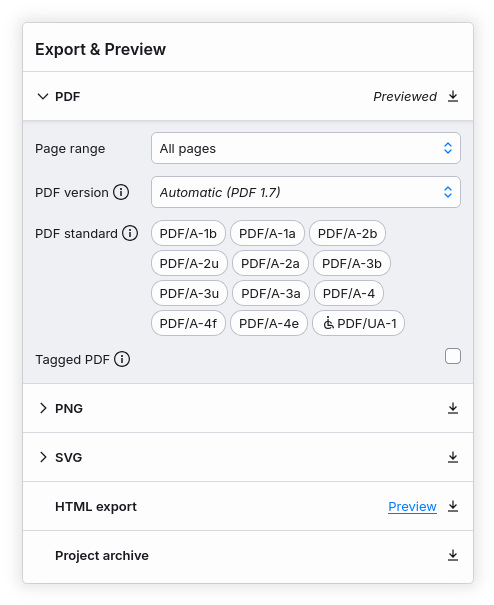
In the “Export and Preview” menu, each export format offers specific settings. For details on their meaning, please refer to the corresponding format documentation, linked above. Once the settings match your needs, click the  download icon next to the format name. A file will be saved to your machine. In case of a PDF or HTML export, a single file will be saved. For PNG and SVG exports, this is only true if your document is a single page long. If there are more, a ZIP archive containing one image per page will be downloaded.
Note that export settings (such as PDF standards or PNG pixels per inch) are synced with your collaborators and the cloud. Hence, when you re-open the same project later, these settings are retained.
Project archive
To download the source files of your project, you can open the “Export and Preview” menu and click the download icon next to “Project archive” to download a ZIP file containing all sources of the document. Alternatively, you can choose “Backup project” in the “File” menu. You can use this file as a backup or to continue editing with the free, open-source Typst compiler on your computer.
Please note that the ZIP file will not include private packages you used for this project. Furthermore, it does not include fonts provided by the web app that you may have used in your project. Depending on which features you used and the fonts installed on your computer, the downloaded ZIP file may fail to compile or look different when compiled locally with the Typst compiler.
HTML preview and export
When using Typst 0.14.0 or higher, you can preview and export your project as HTML. To do so, open the project settings by clicking the  Cogwheel icon in the left sidebar. Under the “Experimental compiler features” section, enable “HTML export”.
In the “Export and Preview” section above, a new option called “Preview mode” will be available, allowing you to switch between a paged document (PDF, PNG, or SVG) or an HTML document. Similarly to the “Previewed file” option, changing the setting here will apply to all your collaborators, and will be persisted once you refresh the page: it changes the default preview mode of the project.
If you want to quickly switch to the other preview mode, you can use the “Preview mode” entry in the “View” menu. You can also click on the “Preview” button next to “PDF” or “HTML” in the “Export and Preview” menu.
When the preview mode is set to paged, the “Quick export” button in the top right corner of the preview will download a PDF file. When you are previewing the document as HTML, it will export a HTML file.
Please keep in mind that HTML export is still experimental: some features may be unsupported and some templates may not render properly.