

Export and Preview
A Typst document can be exported to an external file, that you can then view or edit in a dedicated program and share with others. Four file formats are currently supported: PDF, PNG, SVG and HTML.
Configuring the preview
By default, in the web app, the view is split in two main areas: The text editor in which you can write Typst markup, and the preview panel which shows what your project looks like as you type.
You can decide to show only one of these two using the "View" menu, and clicking
either "Only show editor" or "Only show preview". You can also open the preview
panel in a dedicated window, by clicking the "Show preview in popup" entry in
the same menu, or by using the  window icon in
the toolbar, above the preview. This option can be convenient if you use
multiple monitors.
window icon in
the toolbar, above the preview. This option can be convenient if you use
multiple monitors.
You can also tell Typst which file to preview. Other Typst files may still
exist, but they will have to be imported or included in the previewed file for
their contents to contribute to the final document. To pick a file to preview,
open the file panel and click the  closed eye icon next to it. Note that
this icon will only be present for Typst files. The file that is currently
previewed will have an
closed eye icon next to it. Note that
this icon will only be present for Typst files. The file that is currently
previewed will have an  open eye icon instead.
Clicking the eye icon will only change the preview on your side, for the current session: your collaborators will still preview the previously selected file and so will you, once you refresh the page. If you want to persist this change, you can click the "Change for everyone" button that appears at the bottom of the screen when changing the previewed file. You can also open the "Settings" panel and pick a different file under the "Export and preview" section. If you are currenly previewing a file that is different from the persisted setting, it will be indicated here.
Exporting your project
As explained above, your project can be exported to various file formats: PDF, PNG, SVG or HTML.
The exported file(s) can be useful to share with others, to publish a final version of your document or for archival purpose.
To export a project, you can use the "File" menu, then click the "Export
as" entry and pick the desired format. This will open the "Export and preview"
menu in the top right corner of your screen. You can also open this menu
directly by click the  expand
menu icon next to the "Quick export" button, in the top right corner of
the preview panel.
expand
menu icon next to the "Quick export" button, in the top right corner of
the preview panel.
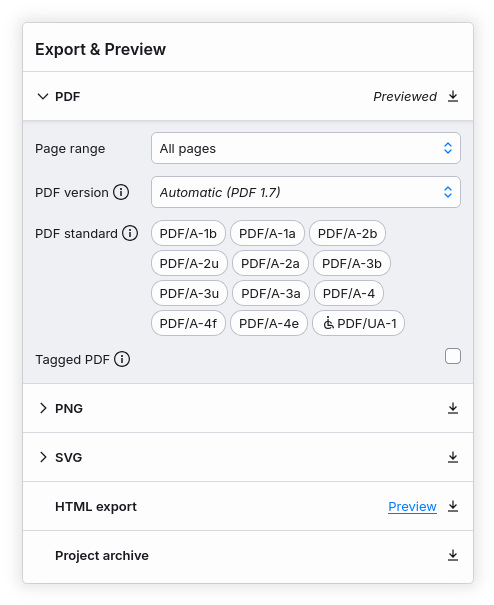
In the "Export and Preview" menu, each export format offers specific settings.
For details on their meaning, please refer to the corresponding format
documentation, linked above. Once the settings match your needs, click the  download
icon next to the format name. A file will be saved to your machine. In case of a
PDF or HTML export, a single file will be saved. For PNG and SVG exports, this
is only true if your document is a single page long. If there are more, a ZIP
archive containing one image per page will be downloaded.
download
icon next to the format name. A file will be saved to your machine. In case of a
PDF or HTML export, a single file will be saved. For PNG and SVG exports, this
is only true if your document is a single page long. If there are more, a ZIP
archive containing one image per page will be downloaded.
Note that export settings (such as PDF standards or PNG pixels per inch) are synced with your collaborators and the cloud. Hence, when you re-open the same project later, these settings are retained.
HTML preview and export
When using Typst 0.14.0 or higher, you can preview and export your project as
HTML. To do so, open the project settings by clicking the  Cogwheel
icon in the left sidebar. Under the "Experimental compiler features" section,
enable "HTML export".
Cogwheel
icon in the left sidebar. Under the "Experimental compiler features" section,
enable "HTML export".
In the "Export and Preview" section above, a new option called "Preview mode" will be available, allowing you to switch between a paged document (PDF, PNG or SVG) or an HTML document. Similarly to the "Previewed file" option, changing the setting here will apply to all your collaborators, and will be persisted once you refresh the page: it changes the default preview mode of the project.
If you want to quickly switch to the other preview mode, you can use the "Preview mode" entry in the "View" menu. You can also click on the "Preview" button next to "PDF" or "HTML" in the "Export and Preview" menu.
When the preview mode is set to paged, the "Quick export" button in the top right corner of the preview will download a PDF file. When you are previewing the document as HTML, it will export a HTML file.
Please keep in mind that HTML export is still experimental: some features may be unsupported and some templates may not render properly.