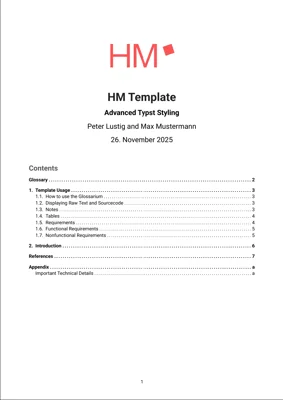
Unofficial Typst template for students of Hochschule München (HM).
To see a minimal example of how you can use this template, check out the main.typ file.
Contributing
If you want to contribute to this template, please open an issue describing the problem or the feature you would like to add.
If you already prepared a pull request, it still helps a lot to have a short issue that explains the motivation and the intended behaviour in your own words.
Usage
You can use this template in two ways.
1. Typst Universe
Once the template is published to Typst Universe you can start a new project directly from the web app:
- Open the Typst web app.
- Click “Start from template”.
- Search for
supercharged-hm.
Using the CLI you will be able to initialize a new project with:
typst init @preview/supercharged-hm
Typst will create a new directory with all the files needed to get you started.
2. Local import from this repository
If you work directly from this repository, import the template library file:
#import "/template/lib.typ": *
A minimal main.typ could look like this:
#import "/template/lib.typ": hm-template

#show: hm-template(
  title: [My Thesis Title],
  subtitle: [Optional Subtitle],
  authors: "Max Mustermann",
  doc-type: [Masterarbeit],
  language: "de",
  glossary: glossary,
  bibliography: bibliography("references.bib"),
  body: [
    = Introduction

    This is the first chapter.
  ],
)
Configuration
This template exports the hm-template function with the following named arguments:
Basic document settings
title (content): Title of the document shown on the title page.
subtitle (content): Optional subtitle printed below the title.
authors (content | str): Author or list of authors. This can be a simple string or a more complex piece of content if you want custom formatting.
doc-type (content): Type of the document, for example Bachelorarbeit, Masterarbeit or Projektarbeit.
language (str): Language of the document, for example "de" or "en", default is "de".
font (str): Main text font, default is "Roboto".
text-size (length): Base text size for body text (not headers or footers), default is 12pt.
version (str): Version string of the document or template, printed where appropriate, default is "0.1".
Front matter and references
abstract (content): Optional abstract page content.
acknowledgements (content): Optional acknowledgements page content.
glossary (array): Glossary and acronym definitions used by the gls and glspl helpers (see section “Glossary and Acronyms”).
glossary-post-thesis (bool): Wether to show the glossary in the beginning or after the bibliography, default false(beginning).
bibliography (content): Bibliography function, for example bibliography("references.bib").
bib-style (str): Bibliography style, default is "ieee".
appendix(content): Content of the appendix section. It is recommended to pass include "appendix.typ". It is expected for the file to contain a level 1 heading such as = Appendix.
lastpage(content): Optional custom last page, for example an imprint, declaration of authorship or additional legal text. It is recommended to pass include "lastpage.typ".
Tables of contents and lists
toc-depth (int | none): Depth of the table of contents, default is 2. Set to none to disable the table of contents.
toc-pagebreak (bool): Whether the table of contents starts on a new page after the title page, default is false.
list-of-tables (bool): Whether to show a list of tables, default is true.
list-of-figures (bool): Whether to show a list of figures, default is true.
list-of-code (bool): Whether to show a list of code snippets, default is false.
lists-of-post-thesis (bool): Wether to show the lists n the beginning or after the bibliography, default false(beginning).
Logos and layout
titlepage-logo (content): Logo for the title page. Typical usage: image("img/university-logo.pdf", width: 40%).
project-logo (content): Logo used inside the main document header. Typical usage: image("img/project-logo.pdf", height: 20pt).
chapter-heading-pagebreak (bool): Whether level 1 headings start on a new page, default is true.
Thesis title page and declaration
show-thesis-title-page (bool): Whether to use the thesis title page layout, default is false.
student-id (content | str | none): Student ID printed on the thesis title page.
submission-date (datetime | none): Submission date printed on the thesis title page. Required when show-thesis-title-page is true. It uses the same rendering rules as date-format.
supervisor (content | none): Supervisor printed on the thesis title page.
faculty (content | str): Faculty printed on the thesis title page, default is "Faculty of Computer Science and Mathematics".
study-course (content | str): Study course printed on the thesis title page, default is "Computer Science".
type-of-degree (content | str): Degree printed on the thesis title page, default is "Master of Science".
city (str | none): City printed in the declaration of authorship. Required when declaration-of-authorship is true.
declaration-of-authorship (bool): Whether to render the declaration of authorship before the abstract/front matter, default is false.
declaration-of-authorship-ai-usage (bool): Whether to include the HM template declaration of authorship declaring the usage of AI tools in creating the thesis or the version not including the paragraphs about AI usage. In case AI was used in any stage of creating the thesis, using the AI usage declaration of authorship is highly advised. It is recommended to read the following document true.
declaration-of-authorship-signature-img (content | none): Optional signature image content for the declaration of authorship.
Numbering and advanced settings
top-remark (content): Small remark printed at the top of the title page, for example a confidentiality note or internal document number.
date (datetime): Date printed on the title page, default is datetime.today().
date-format (auto | str | function): Format used for dates printed by the template, default is auto. With auto, German dates render as 13. Juni 2026 and English dates as 13 June 2026. A string is passed to Typst’s native datetime.display method. A function is called as date-format(date, language) and may return custom content.
front-numbering (str | none): Page numbering pattern for the front matter, default is "i".
main-numbering (str | none): Page numbering pattern for the main matter, default is "1 / 1".
back-numbering (str | none): Page numbering pattern for the back matter, default is "a / a".
appendix-numbering (str | none): Page numbering pattern for the appendix, default is "a / a".
text-size-template (length | text.size): Text size of the template (its highly advised to keep default)
body (content*): Main content of the document. This is where your chapters go and is required.
Behind the arguments the type of the value is given in parentheses.
Arguments marked with * are required for a useful document.
In most cases a thesis or report will at least provide:
titleauthorsdoc-typelanguagebibliographyglossarybody
Thesis Title Page and Declarations
For thesis documents, enable the thesis title page layout and provide the required thesis metadata:
#show: hm-template.with(
  title: [My Thesis Title],
  authors: authors("Max Mustermann"),
  doc-type: [Masterarbeit],
  show-thesis-title-page: true,
  student-id: "12345678",
  submission-date: datetime(year: 2026, month: 6, day: 13),
  supervisor: [Prof. Dr. Erika Muster],
  faculty: [Faculty of Computer Science and Mathematics],
  study-course: [Computer Science],
  type-of-degree: [Master of Science],
  toc-pagebreak: true,
)
You can add front matter and the declaration of authorship with:
#show: hm-template.with(
  abstract: [
    This thesis investigates ...
  ],
  acknowledgements: [
    I would like to thank ...
  ],
  declaration-of-authorship: true,
  city: "Munich",
)
When declaration-of-authorship is enabled, title, doc-type, and city must be set.
Glossary and Acronyms (Glossarium)
The template provides helper functions to work with a glossary and acronyms.
Reference in text
Use the following helpers inside the text:
gls(key): Reference a glossary entry in singular form.
Example:#gls("http")glspl(key): Reference a glossary entry in plural form.
Example:#glspl("api")
Both #gls("http") and the label reference @http behave consistently.
Only the first occurrence of a term will be expanded to its long form, later occurrences show only the short form. For example:
Use the #gls("http") protocol for web traffic.

Later we simply write #gls("http") again without repeating the long form.
Definition
You define the glossary once and pass it to the glossary argument of hm-template.
A typical structure looks like this:
#let glossary = (
  (
    key: "http",
    short: "HTTP",
    long: "Hypertext Transfer Protocol",
  ),
  (
    key: "api",
    short: "API",
    long: "Application Programming Interface",
  ),
)
Then pass the glossary array when calling the template:
#show: hm-template(
  glossary: glossary,
)
Code, Raw Text and Inline Highlighting
Block code with syntax highlighting
Use the code helper to show syntax highlighted blocks. It wraps sourcecode from codelst with template defaults.
#figure(
  caption: "Example code.",
)[
  #code(
    ```py
    def example_function(a: int, b: int) -> int:
        print("Hello, World!")
        return a + b
    ```
  )
]
Inline colored code
For inline highlighted code use fenced language markers:
The function ```py example_function(a, b)``` prints a greeting.
Inline colored monospace text
If you want monospaced text in a specific color, use rgb-raw:
#rgb-raw("MACHINE_ADAPTER", rgb("#13A256"))
This renders the identifier MACHINE_ADAPTER in monospace with the given RGB color.
Notes
A small family of note helpers is available to draw attention to important remarks.
Available functions:
note(content): Neutral note box.color-note(content, fg, bg): Note with custom foreground and background color.warning-note(content): Warning style box.good-note(content): Positive or success style box.
Example:
#stack(
  dir: ltr,
  spacing: 10pt,
  note("Note"),
  color-note("Color note", rgb("#2B82BD"), rgb("#c9dfec")),
  warning-note("Warning note"),
  good-note("Good note"),
)
Use these note styles sparingly to keep the document readable.
Tables
For tables, the template provides a styled wrapper styledtable around Typst’s table function.
You can use it like this:
#figure(caption: [Example Table])[
  #styledtable(
    table(
      columns: (auto, auto, auto),
      table.header([*Platform*], [*Adapters*], [*Data*]),
      table.hline(),
      [Drone],[
        - wifi
        - lte
      ],[
        - Mission Data
        - Camera feed
        - Flight information
      ],
      [Car],[
        - LTE
      ],[
        - Route information
        - Maintenance Data
      ],
      [Truck],[
        - Lorawan
        - LTE
      ],[
        - Moving & rest times
        - Loading information
        - Maintenance Data
      ],
    )
  )
]
styledtable takes care of consistent strokes and alternating row backgrounds. You can override:
strokebackground-oddbackground-even
to adjust the look for your document.
Requirements
The requirements helper renders grouped functional and nonfunctional requirements in a consistent layout.
Usage
#requirements(
  functional-chapter-description: [
    Functional requirements specify what functionality or behavior
    the resulting product under the specified conditions should have.
  ],
  functional: (
    (
      title: [Drone Connectivity],
      description: [The drone shall have connectivity to the server.],
      traceability: [Linked to connectivity design decisions.],
      subrequirements: (
        (
          title: [LTE Connectivity],
          description: [Connectivity to the server shall be achieved via LTE.]
        ),
      ),
    ),
  ),

  non-functional-chapter-description: [
    Nonfunctional or technical requirements describe aspects regarding
    one or more functional requirements. In short, they specify how the
    product should work.
  ],
  nonfunctional: (
    (
      title: [Server Placement],
      description: [The drone server shall be placed in a remote data center.],
      authors: ("Max Mustermann",),
    ),
  ),
)
Each requirement can include optional traceability, authors, and subrequirements fields.
Below the rendered block, each requirement is assigned an identifier based on its title. You can reference them from the text like this:
@req_Drone_Connectivity@req_functional@req_nonfunctional
Example sentence:
As specified in @req_Drone_Connectivity the system must maintain a link
to the backend server during flight.
This makes it easy to keep traceability between your requirements and the main text.