Featured Template
A shell simulator that renders interactive terminal sessions in Typst, powered by a Rust WASM plugin.
Type shell commands in your Typst document. Conch executes them against a virtual filesystem and renders a realistic terminal window — complete with colored output, syntax highlighting, and animation support.

Quick Start
#import "@preview/conch:0.1.0": system, terminal

#show: terminal.with(
  system: system(
    hostname: "conch",
    files: (
      "hello.txt": "Hello, World!",
      "src/main.rs": "fn main() {\n    println!(\"hi\");\n}",
    ),
  ),
  user: "demo",
)

```
ls
cat hello.txt
cat src/main.rs
echo "Welcome to $SHELL!"
```
Three Reusable Layers
Conch is built as three independent layers. Use only what you need.
Layer 1: Terminal Frame
A themed terminal window chrome. No WASM, no shell — just the visual frame around any content.
#import "@preview/conch:0.1.0": terminal-frame

#terminal-frame(title: "cargo build", theme: "dracula")[
  \$ cargo build --release \
  Compiling my-app v0.1.0 \
  Finished release target(s) in 3.2s
]
Layer 2: ANSI Renderer
Render text with ANSI escape sequences. Works standalone or inside a frame.
#import "@preview/conch:0.1.0": terminal-frame, render-ansi

#terminal-frame(title: "test results", theme: "catppuccin")[
  #render-ansi(
    "\u{1b}[1;32mPASSED\u{1b}[0m test_new\n\u{1b}[1;31mFAILED\u{1b}[0m test_pipe",
    theme: "catppuccin",
  )
]

Layer 3: Shell Simulator
The full experience — execute commands, pipe output, write files, run scripts.
As a standalone page (show rule — sets page dimensions automatically):
#import "@preview/conch:0.1.0": system, terminal

#show: terminal.with(
  system: system(),
  user: "dev",
)

```
ls | grep ".rs" | wc -l
cat data.csv | cut -d , -f 1,3 | sort | uniq
echo "done" > log.txt && cat log.txt
```

Embedded in a document (no page side effects):
#import "@preview/conch:0.1.0": system, terminal-block

= Build Log

#terminal-block(
  system: system(files: (
    "src/main.rs": "fn main() {}",
  )),
  user: "ci",
)[```
ls
cat src/main.rs
echo "Build complete"
```]
Use terminal for standalone terminal documents and screenshots. Use terminal-block to embed a terminal inside a larger document alongside other content.
Supported Commands
100+ commands across 9 categories:
| Category | Commands |
|---|---|
| Filesystem | ls (-alRht1), cat (-n, -), mkdir (-p), rmdir, touch, mktemp (-d), rm (-rf), cp (-rnp), mv, ln (-sf), readlink (-f), find (-name, -iname, -type, -path, -maxdepth, -exec, -delete), tee (-a), chmod (-R, octal + symbolic), chown (-R), chgrp (-R), id, groups |
| Text | echo (-en), printf (width/precision/float), head/tail (-n, +N), wc (-lwc), grep (-EivncloqwABC), sort (-rnukt), uniq (-cdu), cut (-dcf), tr (-ds, ranges, POSIX classes), rev, seq (-sw, float), tac, nl, paste (-ds), column (-t), xargs |
| Transform | sed (-inE, s///, d, p, a\/i\/c\, addresses, regex, backrefs), diff (-uq, LCS), xxd, base64 (-d) |
| Inspect | stat (-c), test/[ (-efdrwxsLzn, -eq/-nt/-ot, -a/-o, !), [[ ]] (=~, glob, &&/||), du (-shcd), tree (-La, summary) |
| Navigation | cd (-), pushd, popd, dirs, pwd, basename, dirname, realpath, whoami, hostname, date (+FORMAT), which, type (-t), env, printenv, export, unset (-f), sleep (suffixes) |
| User mgmt | useradd/adduser, groupadd/addgroup, userdel/deluser, usermod (-aG, -G), su (-, -c), sudo (-u), passwd |
| Scripting | bash/sh (-cex), source/., ./script.sh, functions, return |
| Process | jobs, wait (-n), kill (-l, signals), ps, time, timeout |
| Builtins | set (-euxoCf), declare/local (-piaAnrxfF), readonly, read (-rpadn), trap (7 signals), alias/unalias, eval, exec, command (-vV), let, getopts, mapfile, shift, true, false, shopt, umask, history |
Shell Features
Pipes
Chain commands with |. Output flows from left to right.

cat data.csv | grep alice | cut -d , -f 2
ls | sort -r | head -n 5
Redirects
Write output to files with > (overwrite) or >> (append).
echo "hello" > greeting.txt
date >> log.txt
Command Chaining
mkdir build && echo "ok"        # run second only if first succeeds
rm missing.txt || echo "skip"   # run second only if first fails
echo "a"; echo "b"; echo "c"   # always run all
Variable Expansion
echo "Hello, $USER!"
echo "Shell: $SHELL"
export MY_VAR=hello && echo $MY_VAR
Background Jobs
sleep 10 &              # run in background
jobs                    # list background jobs
wait                    # wait for all background jobs
kill %1                 # terminate job 1
Functions & Control Flow
greet() { echo "Hello, $1!"; }
greet world

for i in 1 2 3; do echo $i; done
for (( i=0; i<5; i++ )); do echo $i; done

case "$1" in
  start) echo "Starting";;
  stop)  echo "Stopping";;
  *)     echo "Unknown";;
esac
Arrays
arr=(a b c)
echo ${arr[1]}          # b
echo ${#arr[@]}         # 3
declare -A map
map[key]=value
Arithmetic
echo $(( 2 + 3 ))      # 5
(( x = 10 * 2 ))
let "y = x + 1"
Heredocs
cat <<EOF
Hello, $USER!
EOF
Command History
Navigate previous commands with Up/Down arrows in per-char animations. View history with the history builtin.
history
\x1b[A          # recall previous command
Tilde & Glob Expansion
cd ~
cat ~/README.md
ls *.txt
cat src/*.typ
Quoting
echo "hello world"         # double quotes (variables expanded)
echo 'hello $USER'         # single quotes (literal)
echo "it's a \"test\""     # backslash escapes
Virtual Filesystem
Inline Files
#let sys = system(
  files: (
    "hello.txt": "Hello, World!",
    "src/main.rs": "fn main() {}",
  ),
)
Real Files
Read actual project files using Typst’s read():
#let sys = system(
  files: (
    "src/main.rs": read("src/main.rs"),
    "README.md": read("README.md"),
  ),
)
File Permissions
Set Unix-style permissions. Default: 644 for files, 755 for directories. Read and write operations are enforced — cat on an unreadable file or > redirect to a read-only file returns “Permission denied”, just like a real shell.
#let sys = system(
  files: (
    "secret.txt": (content: "top secret data", mode: 000),
    "readonly.txt": (content: "do not modify", mode: 444),
    "setup.sh": (content: "#!/bin/bash\necho 'Ready!'", mode: 644),
  ),
)
Use chmod to change permissions at runtime:
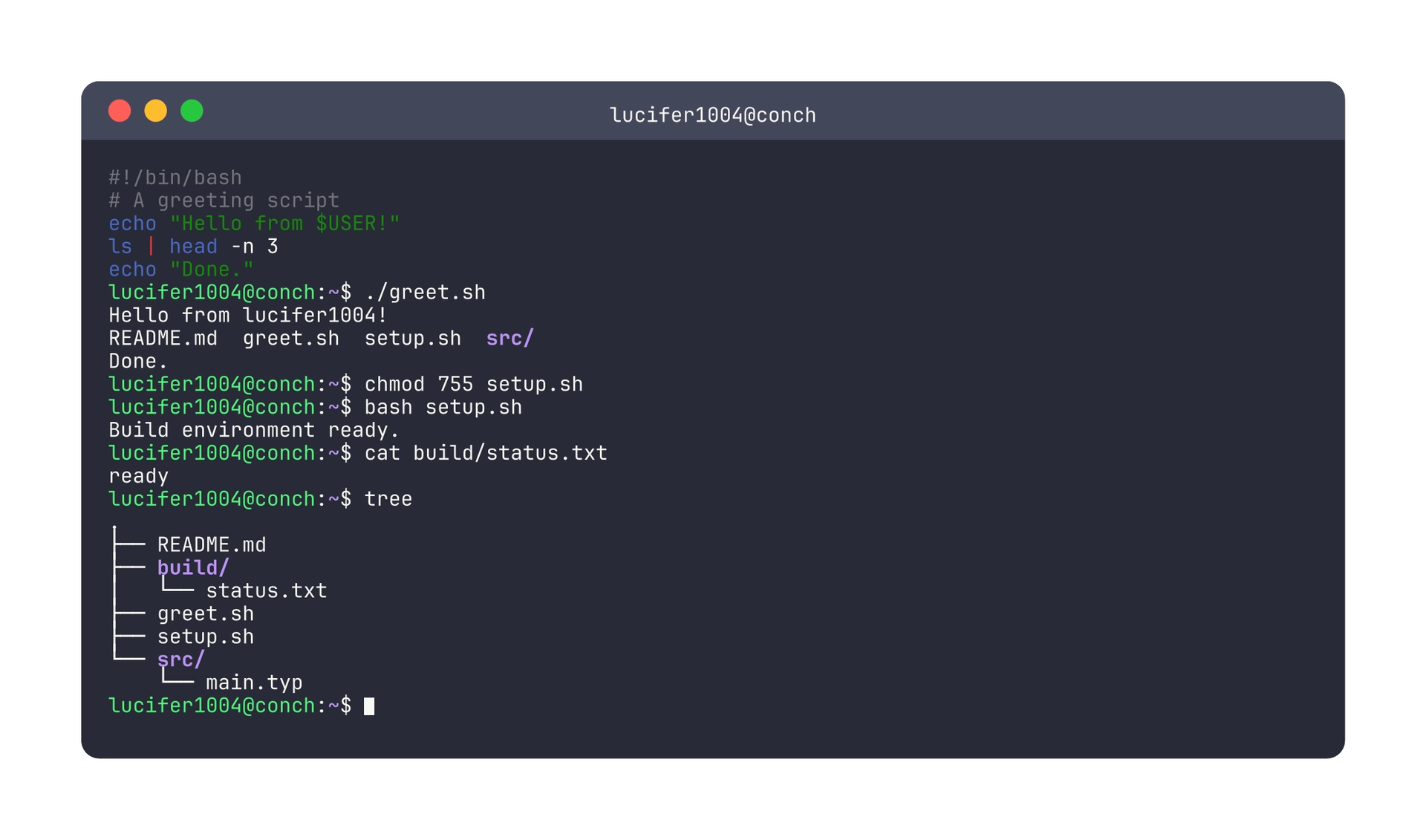
chmod 755 setup.sh
./setup.sh

Users & Groups
Define users and groups within the virtual system:
#let sys = system(
  hostname: "dev",
  users: (
    (name: "alice", groups: ("sudo",)),
    (name: "bob"),
  ),
  groups: (
    (name: "docker", members: ("alice",)),
  ),
  files: (:),
)
Users can run commands with su to switch identity, and group membership affects sudo permissions and file access control. Use usermod, useradd, groupadd commands at runtime to modify users and groups.
Script Execution
Create executable scripts and run them:

#let sys = system(
  files: (
    "deploy.sh": (content: "#!/bin/bash\nmkdir -p dist\necho 'built' > dist/status\necho 'Deploy complete!'", mode: 755),
  ),
)
./deploy.sh
cat dist/status
Scripts support the full shell feature set: pipes, redirects, chaining, variables.
Plugins
Typst Function Plugins
Define custom commands as plain Typst functions — no compilation needed:
#import "@preview/conch:0.1.0": system, terminal

#let cowsay(args, stdin, files) = {
  let msg = if stdin != "" { stdin.trim("\n", at: end) } else { args.join(" ") }
  (stdout: "< " + msg + " >\n", exit-code: 0)
}

#show: terminal.with(
  system: system(plugins: (("cowsay", cowsay),)),
  user: "demo",
)

```
cowsay "Hello from a plugin!"
echo "piped input" | cowsay
```
WASM Plugins
Compile a command to WebAssembly and run it inside conch via the embedded wasmi interpreter. WASM plugins work in any pipeline position, just like built-in commands.
#import "@preview/conch:0.1.0": system, terminal

#let upper = read("upper.wasm", encoding: none)

#show: terminal.with(
  system: system(wasm-plugins: (("upper", upper),)),
  user: "demo",
)

```
echo "hello" | upper | head -1
cat file.txt | upper
```


WASM plugins follow the wasm-minimal-protocol and exchange JSON:
- Input:
{"args": [...], "stdin": "...", "files": {"name": "content"}} - Output:
{"stdout": "...", "exit-code": 0}
See wasm/demo-plugin/ for a complete example.
Syntax Highlighting
cat automatically detects file extensions and applies Typst’s native syntax highlighting:
cat main.rs      # Rust highlighting
cat app.py        # Python highlighting
cat index.html    # HTML highlighting
cat lib.typ       # Typst highlighting
Supported: rs, py, js, ts, html, css, json, toml, yaml, md, sh, c, cpp, java, go, rb, xml, sql, r, typ.
ANSI Colors
Commands emit ANSI color codes rendered natively:
ls: directories in bold bluetree: directories in bold bluegrep: filenames in magenta, line numbers in green, matches in bold red
Themes
Six built-in themes, each with matching ANSI color palettes:
dracula (default), catppuccin, monokai, retro, solarized, gruvbox

#import "@preview/conch:0.1.0": system, terminal
#show: terminal.with(system: system(), theme: "retro", user: "demo")
Custom Themes
Pass a dictionary instead of a name:
#import "@preview/conch:0.1.0": system, terminal
#show: terminal.with(
  system: system(),
  user: "demo",
  theme: (
    bg: rgb("#1a1b26"), fg: rgb("#c0caf5"),
    prompt-user: rgb("#9ece6a"), prompt-path: rgb("#7aa2f7"), prompt-sym: rgb("#c0caf5"),
    title-bg: rgb("#24283b"), title-fg: rgb("#c0caf5"),
    error: rgb("#f7768e"), cursor: rgb("#c0caf5"),
    ansi: (
      red: rgb("#f7768e"), green: rgb("#9ece6a"), yellow: rgb("#e0af68"),
      blue: rgb("#7aa2f7"), magenta: rgb("#bb9af7"), cyan: rgb("#7dcfff"), white: rgb("#c0caf5"),
      bright-red: rgb("#f7768e"), bright-green: rgb("#9ece6a"), bright-yellow: rgb("#e0af68"),
      bright-blue: rgb("#7aa2f7"), bright-magenta: rgb("#bb9af7"), bright-cyan: rgb("#7dcfff"), bright-white: rgb("#ffffff"),
    ),
  ),
)
Window Chrome
Five built-in window decoration styles. Chrome and theme are independent — mix any chrome with any color theme.
#import "@preview/conch:0.1.0": system, terminal
#show: terminal.with(system: system(), user: "demo", chrome: "windows", theme: "dracula")
macos (default), windows, windows-terminal, gnome, plain

Pass a custom function for fully custom title bars:
#terminal-frame(
  chrome: (title, t, f) => block(fill: t.title-bg, width: 100%, inset: 8pt, {
    text(..f, fill: t.title-fg)[#title]
  }),
)[...]
Available on all functions: terminal, terminal-block, terminal-frame, terminal-per-line, terminal-per-char.
Font
The font parameter accepts a dictionary of Typst text() properties. Only specify what you want to change — unset keys use the defaults (JetBrains Mono, 9pt).
#import "@preview/conch:0.1.0": system, terminal

// Change size only
#show: terminal.with(system: system(), user: "demo", font: (size: 12pt))

// Change family
#show: terminal.with(system: system(), user: "demo", font: (font: ("Fira Code",)))

// Full customization — any text() property works
#show: terminal.with(
  system: system(),
  user: "demo",
  font: (
    font: ("IBM Plex Mono",),
    size: 11pt,
    weight: "bold",
    ligatures: false,
    tracking: 0.5pt,
  ),
)
Available on all functions: terminal, terminal-block, terminal-frame, terminal-per-line, terminal-per-char.
Style
The style parameter controls layout spacing. Override any key — unset keys use defaults.
#import "@preview/conch:0.1.0": system, terminal

// Tighter body padding
#show: terminal.with(system: system(), user: "demo", style: (inset: (x: 8pt, y: 4pt)))

// Wider line spacing
#show: terminal.with(system: system(), user: "demo", style: (leading: 0.6em))

// Both
#show: terminal.with(
  system: system(),
  user: "demo",
  style: (inset: (x: 16pt, y: 8pt), leading: 0.5em)
)
| Key | Default | Description |
|---|---|---|
inset |
(x: 12pt, y: 6pt) |
Body padding (horizontal and vertical) |
leading |
0.4em |
Line spacing (Typst par.leading) |
Available on all functions: terminal, terminal-block, terminal-frame, terminal-per-line, terminal-per-char.
Animation
Generate frames for GIF creation. Each page = one animation frame.
Per-Line Animation
One frame per command execution:
#import "@preview/conch:0.1.0": system, terminal-per-line

#terminal-per-line(
  system: system(),
  user: "demo",
  height: 350pt,
  width: 560pt,
)[```
ls
cat hello.txt
echo "done"
```]
Per-Char Animation
Typing effect — one frame per keystroke:
#import "@preview/conch:0.1.0": system, terminal-per-char

#terminal-per-char(
  system: system(),
  user: "demo",
  height: 350pt,
  width: 560pt,
)[```
ls
cat hello.txt
echo "done"
```]
The last command is always typed but not executed — for a natural “in progress” ending.
Pass show-cursor: false to terminal, terminal-block, terminal-per-line, or terminal-per-char to hide the cursor block (terminal-frame has no cursor).
Keyboard Operations
Simulate typing corrections and cursor movement in per-char animations using \xNN escape notation. Lines without escapes use the fast default path (zero overhead).
| Escape | Key | Effect |
|---|---|---|
\x7f |
Backspace | Delete character before cursor |
\x1b[C |
Right | Move cursor right |
\x1b[D |
Left | Move cursor left |
\x1b[H |
Home | Move cursor to start of line |
\x1b[F |
End | Move cursor to end of line |
\x1b[3~ |
Delete | Delete character at cursor |
\x1b[A |
Up | Recall previous command (history) |
\x1b[B |
Down | Recall next command (history) |
\x03 |
Ctrl+C | Interrupt (emits ^C marker) |
\\ |
\ |
Literal backslash |
Example — backspace correction and mid-line cursor editing:
#import "@preview/conch:0.1.0": system, terminal-per-char

#terminal-per-char(
  system: system(files: ("hello.txt": "Hello!")),
  user: "demo",
)[```
cat helo\x7flo.txt
eco\x1b[Dh\x1b[F "done"
```]
The first line types cat helo, backspaces the o, then types lo.txt — executing cat hello.txt. The second line types eco, moves left, inserts h to make echo, jumps to end, and finishes echo "done".
Frame Pacing (hold)
Control how many duplicate pages are emitted at key moments — useful for GIF/video timing:
#import "@preview/conch:0.1.0": system, terminal-per-char, terminal-per-line

// Per-char: hold 20 extra frames at the end, with cursor blinking
#terminal-per-char(
  system: system(),
  user: "demo",
  hold: (after-final: 20, final-cursor-blink: true, final-blink-hold: 3),
)[```
ls
echo "done"
```]

// Per-line: hold 5 extra frames after each command
#terminal-per-line(
  system: system(),
  user: "demo",
  hold: (after-frame: 5),
)[```
ls
echo "done"
```]
| Key | Applies to | Default | Description |
|---|---|---|---|
after-frame |
per-line | 0 |
Extra duplicate pages after each command step |
after-output |
per-char | 0 |
Extra pages after command output appears |
after-final |
per-char | 0 |
Extra pages after the last command is fully typed |
final-cursor-blink |
per-char | false |
Toggle cursor on/off during after-final hold |
final-blink-hold |
per-char | 2 |
Pages per blink phase (higher = slower blink) |
Creating GIFs
From a clone of this repo (after just build), render a multi-page Typst file (e.g. #terminal-per-char / #terminal-per-line) to GIF:
just gif                                    # default: demo/demo.typ → demo/demo.gif
just gif --src path/to/session.typ          # → path/to/session.gif
just gif --src foo.typ -o bar.gif -f 12
just gif --hold-after-final 40              # overrides `hold` in Typst via sys.inputs (see `src/terminal.typ`)
just --usage gif                            # all flags (requires just ≥ 1.46)
Requirements: just (≥ 1.46 for just --usage gif), ffmpeg, and run commands from the package root so #import "lib.typ": … resolves. Use --frames-dir to keep PNG frames in a fixed folder instead of a temp directory.
CLI hold overrides (sys.inputs)
All hold keys can be overridden from the command line without editing the .typ file, via Typst’s --input flag. This is what just gif --hold-after-final 40 does under the hood:
typst compile anim.typ 'frames/f-{0p}.png' --input conch_hold_after_final=40
| Input key | Overrides |
|---|---|
conch_hold_after_frame |
hold.after-frame (per-line) |
conch_hold_after_output |
hold.after-output (per-char) |
conch_hold_after_final |
hold.after-final (per-char) |
conch_hold_final_cursor_blink |
hold.final-cursor-blink (per-char, 0/1) |
conch_hold_final_blink_hold |
hold.final-blink-hold (per-char) |
CLI inputs take highest priority: defaults < hold: parameter < sys.inputs.
Manual pipeline (same idea):
typst compile anim.typ 'frames/f-{0p}.png' --root .
ffmpeg -framerate 10 -i 'frames/f-%02d.png' \
  -vf "split[s0][s1];[s0]palettegen[p];[s1][p]paletteuse" \
  demo.gif
# Or with ImageMagick (variable timing)
magick -delay 8 frames/f-*.png -delay 120 frames/f-04.png -loop 0 demo.gif
Fixed-Height Terminal
Set height for consistent frame sizes. Content scrolls like a real terminal — old lines clip off the top, snapped to whole line boundaries.
#terminal-per-char(height: 350pt, width: 560pt)
Pagination
When a fixed-height terminal overflows, set overflow: "paginate" to automatically continue onto new pages instead of clipping old lines. Each page renders a complete terminal window.
#import "@preview/conch:0.1.0": system, terminal

#show: terminal.with(
  system: system(
    files: (
      "hello.txt": "Hello, World!",
      "data.csv": "name,age,city\nalice,30,paris\nbob,25,london",
      "src/main.rs": "fn main() {\n    println!(\"Hello!\");\n}",
    ),
  ),
  user: "demo",
  height: 300pt,
  overflow: "paginate",
)

```
ls
cat src/main.rs
cat data.csv
grep -n conch README.md
echo "Welcome to conch!"
tree
ls -la
```
| Page 1 | Page 2 |
|---|---|
 |
 |
Content splits at command boundaries — each entry (prompt + output) stays together on the same page. The final prompt with cursor appears on the last page.
Touying Integration
Use terminal-frames() to generate an array of frame content for slide frameworks like touying. Each frame is a self-contained terminal block.
#import "@preview/touying:0.7.1": *
#import "@preview/conch:0.1.0": system, terminal-frames

#import themes.simple: simple-theme, slide, title-slide
#show: simple-theme.with(aspect-ratio: "16-9")

#let frames = terminal-frames(
  mode: "per-line",  // or "key-frames", "per-char"
  system: system(files: ("hello.txt": "Hello!")),
  user: "demo",
  commands: ("ls", "cat hello.txt", "echo done"),
  width: 480pt,
  height: 200pt,
)

#slide(repeat: frames.len(), self => [
  == Demo
  #frames.at(self.subslide - 1)
])
| Mode | Frames | Best for |
|---|---|---|
"per-line" |
One per command step | Most presentations |
"key-frames" |
Pre/post execution only | Dense sessions |
"per-char" |
One per keystroke | Short demos |

See demo/touying.typ for a full working example.
Raw Execution
Execute commands and retrieve raw session data without rendering. Useful for programmatic access to command output and exit codes.
#import "@preview/conch:0.1.0": execute, system

#let result = execute(
  system: system(files: ("hello.txt": "world")),
  user: "alice",
  commands: ("whoami", "cat hello.txt"),
)

// Access raw output data
#result.entries.at(0).output  // "alice"
#result.entries.at(1).output  // "world"
#result.entries.at(0).exit-code  // 0
The execute() function returns a dictionary with:
entries: array of command results, each withuser,hostname,path,command,output,exit-code, and optionallylang(detected language for syntax highlighting)final-path: the working directory after all commandsfiles: (only wheninclude-files: true) dictionary mapping each path to its type, content, and mode
Filesystem Extraction
Pass include-files: true to capture the filesystem state after execution. Use it to extract generated files into your document:
#let result = execute(
  system: system(files: ("data.csv": "name,score\nalice,95\nbob,82")),
  user: "demo",
  commands: ("sort -t, -k2 -rn data.csv > ranked.csv",),
  include-files: true,
)

// Use the generated file in prose
Top scorer: #result.files.at("/home/demo/ranked.csv").content
Each entry in files is tagged by type:
- file:
(type: "file", content: "...", mode: 644) - dir:
(type: "dir", mode: 755) - symlink:
(type: "symlink", target: "...")

API Reference
Functions
| Function | Description |
|---|---|
system(hostname, users, groups, files, plugins, wasm-plugins) |
Define a virtual system configuration |
execute(system, user, commands) |
Execute commands and return raw session data (no rendering) |
terminal-frame(body, title, theme, font, chrome, style, width, height) |
Themed terminal window chrome |
render-ansi(body, theme) |
ANSI escape sequence renderer |
terminal(body, system, user, theme, font, chrome, width, height, show-cursor, overflow) |
Standalone page shell simulator (show rule; sets page dimensions) |
terminal-block(body, system, user, theme, font, chrome, width, height, show-cursor, overflow) |
Embeddable shell simulator (no page settings; composable with other content) |
terminal-per-line(body, system, user, theme, font, chrome, width, height, overflow, hold) |
Per-command animation frames; hold sets extra duplicate pages per step (after-frame) |
terminal-per-char(body, system, user, theme, font, chrome, width, height, overflow, hold) |
Per-keystroke animation frames; hold sets tail pacing (after-output, after-final, final-cursor-blink, final-blink-hold) |
terminal-frames(mode, system, user, theme, font, chrome, width, height, show-cursor, overflow, commands) |
Returns array of frame content; mode: "per-line", "per-char", "key-frames" |
Exports
#import "@preview/conch:0.1.0": (
  system,             // virtual system constructor
  execute,            // raw command execution (no rendering)
  terminal,           // standalone page shell (show rule)
  terminal-block,     // embeddable shell block
  terminal-frames,    // frame array for slide frameworks
  terminal-frame,     // standalone frame (no shell)
  terminal-per-line,  // per-command animation
  terminal-per-char,  // per-keystroke animation
  render-ansi,        // ANSI renderer
  themes,             // built-in theme definitions
)
Development
See CONTRIBUTING_GUIDE.md for building the WASM plugin, maintainer just recipes, and publishing to Typst Universe.
License
See LICENSE.