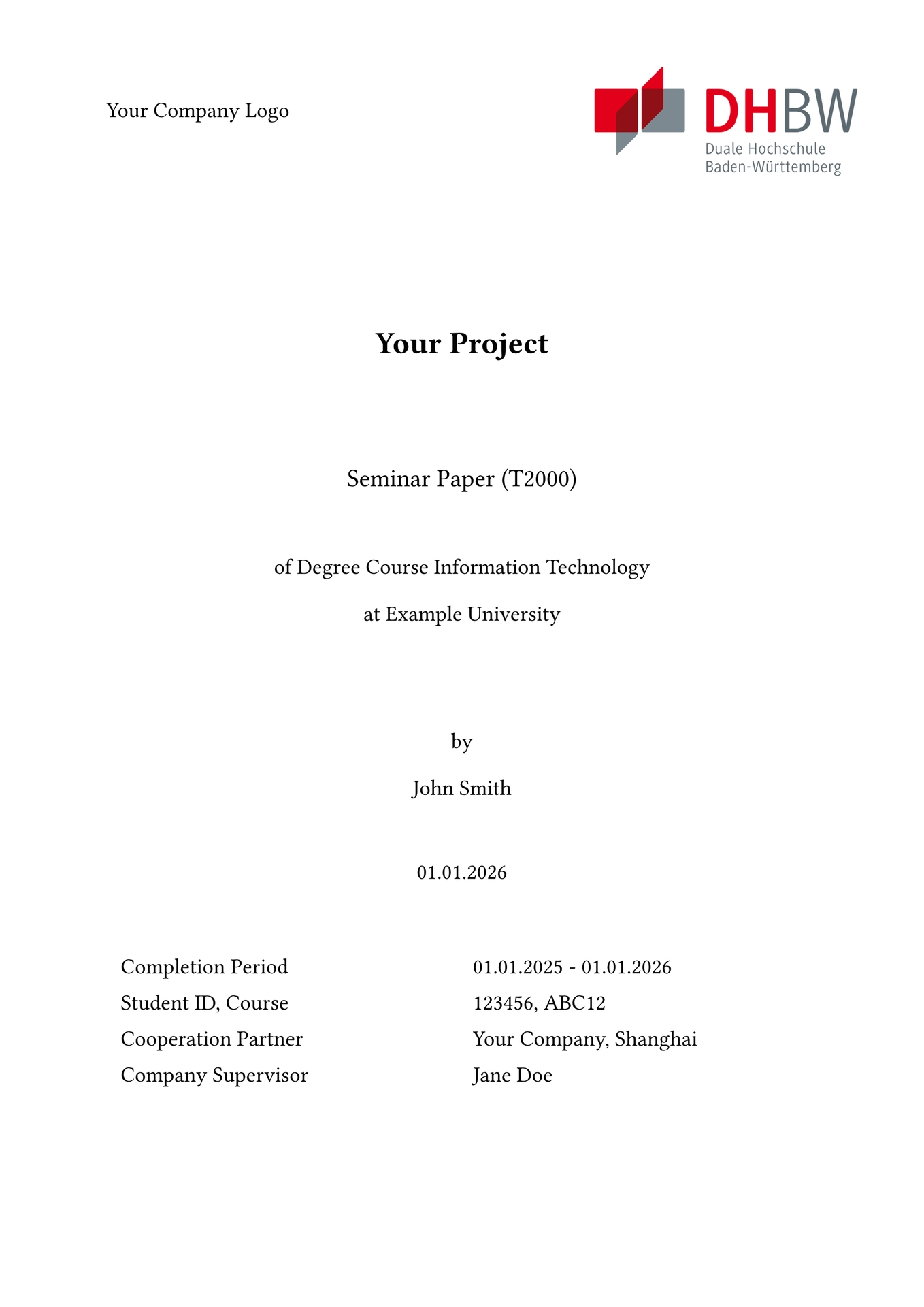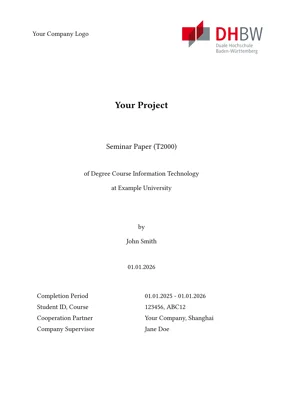
A lightweight template for theses at DHBW Ravensburg. Although, it can be customized to allow for use at other universities. There are two thoughts behind the template:
- Providing everything you need for simple papers that do not require specific styling setups
- Being lightweight and easy to extend for papers that require more complex setups (for people who like extending their templates themselves)
Importing and using the template is pretty straight-forward, especially with previous Typst experience.
Contents
Getting Started
The fastest way of just using the template is by initializing a new project with the default template configuration. You can do so by typing the following command in a terminal (don’t forget to navigate to the folder you want to be in first):
typst init "@preview/aero-dhbw:0.4.2" PROJECT-NAME
Replace PROJECT-NAME with the actual project name or something else if you structure your folders differently.
This default setup comes with an already setup acronym list, where you just have to put in your values and don’t have to worry about syntax. The most important arguments are already “written out” so-to-say, as well. The intended directory structure is also already present and some usage hints for some lesser components are also included.
Minimal Configuration
In case you want to do the template setup yourself, here is the minimal configuration needed for the template:
#import "@preview/aero-dhbw:0.4.2": aero-dhbw

#show: aero-dhbw.with(
  author: (
    (name: "", mat-number: "", course-acronym: ""),
  ),
  start-date: datetime(year: 2026, month: 1, day: 1),
  end-date: datetime(year: 2026, month: 12, day: 31),
)
I would recommend filling in more options, otherwise your cover page won’t look very nice.
Configuration Options
| Name | Required | Default | Description |
|---|---|---|---|
| Project Metadata | |||
| title | ✗* | — | Specifies the title of the project. |
| project | ✗* | — | Specifies the official DHBW project identifier (e.g. T1000). |
| project-type | ✗* | — | Defines the type of project (e.g. seminar thesis or bachelor thesis). |
| author | ✓ | — | Array of author dictionaries with name, mat-number, and course-acronym entries. Use one entry for a single-author thesis. See example |
| course | ✗* | — | Defines the name of the study course. |
| start-date | ✓ | — | Specifies the official start date of the project. |
| end-date | ✓ | — | Specifies the official end date of the project. |
| supervisor | ✗ | — | Specifies the company supervisor for the project. |
| university-supervisor | ✗ | — | Specifies the university professor supervising the project (mainly relevant for bachelor theses). |
| company | ✗ | — | Defines the name of the employer or partner company, if applicable. |
| company-location | ✗ | — | Specifies the city where the company is located, if applicable. |
| university | ✗* | — | Defines the name of the university. |
| Logos & Other Documents | |||
| university-logo | ✗ | — | Path to the image file of the university logo. |
| company-logo | ✗ | — | Path to the image file of the company logo. |
| confidentiality-notice | ✗ | — | Path to an image or PDF containing the confidentiality notice (mainly for company theses). |
| declaration-of-authorship | ✗ | Generated declaration | Custom full-page declaration content, e.g. image("resources/declaration.pdf", width: 100%). |
| place-of-authorship | ✗* | — | Specifies the city where the project was completed (used in the declaration of authorship). |
| Content Files | |||
| path-to-abstract | ✗ | — | Abstract content, e.g. include "chapters/abstract.typ". |
| path-to-annex | ✗ | — | Annex content, e.g. include "chapters/annex.typ". |
| Acronyms & AI Usage | |||
| acronym-list | ✗ | — | Dictionary defining acronyms used in the document. See example |
| used-ai | ✗ | — | Dictionary mapping AI model names to descriptions of their usage (required by DHBW guidelines). See example |
| Bibliography & Citations | |||
| bib | ✗ | — | Bibliography content evaluated in the calling document, e.g. bibliography("references.bib"). |
| bib-style | ✗ | IEEE | Defines the bibliography style. |
| citation-style | ✗ | IEEE | Defines the citation style. |
| Language & Typography | |||
| font | ✗ | Libertinus Serif | Specifies the font used for the document. |
| text-lang | ✗ | — | Sets the document language (en or de). |
| Layout & Formatting | |||
| outline-style | ✗ | default | Defines the style used for generated outlines. |
| outline-depth | ✗ | 3 | Sets the maximum heading depth shown in the table of contents. |
| margins | ✗ | 2.5 cm | Sets the document margins (DHBW Ravensburg guideline). |
| leading-spaces | ✗ | 1.5 em | Defines line spacing (DHBW Ravensburg guideline). |
| text-size | ✗ | 12 pt | Sets the base text size (DHBW Ravensburg guideline). |
| par-spacing | ✗ | 2 em | Defines spacing between paragraphs. |
| figure-gap-above | ✗ | 1 em | Sets spacing between a figure and the preceding paragraph. |
| figure-gap-under | ✗ | 1 em | Sets spacing between a figure and the following paragraph. |
| table-caption-position | ✗ | bottom | Defines whether table captions appear above or below tables. |
| Referencing Behavior | |||
| heading-name-as-supplement | ✗ | false | If enabled, references chapters by their heading name instead of section number. See example |
Legend: ✓ required · ✗ optional · ✗* technically optional but strongly recommended
Examples
Below are some examples for configuration options that require some additional information.
bib
Create the bibliography in the calling document so relative paths resolve from your project, then pass the resulting content to the template.
#let bib = bibliography("references.bib")

#show: aero-dhbw.with(
  // other arguments...
  bib: bib,
)
heading-name-as-supplement
Controls how section references are rendered in the text.
When enabled, references use the heading name instead of the section number.
Example
= Overview of Cloud Architecture <intro>

As you can see in @intro

// If heading-name-as-supplement is set to false:
As you can see in Section 2.

// If heading-name-as-supplement is set to true:
As you can see in Overview of Cloud Architecture.
used-ai
Defines how artificial intelligence tools were used during the project.
This information is rendered as a table in the annex and is required by DHBW guidelines.
Example
#import "@preview/aero-dhbw:0.4.2": aero-dhbw

#let ai-dict = (
    "NAME-OF-MODEL": [DESCRIPTION OF USE]
)

#show: aero-dhbw.with(
    // other arguments...
    used-ai: ai-dict
)
acronym-list
Defines acronyms used throughout the document.
It is recommended to use the shared glossary-list provided in acronyms.typ instead of defining a custom list.
(No code example required when using the shared glossary.)
Authors
Pass an array of author dictionaries to author (up to 6 authors). For a single-author thesis, use the same shape with one entry.
Example
#show: aero-dhbw.with(
    // other arguments...
    author: (
        (name: "Jane Doe",       mat-number: "123456", course-acronym: "TINF22"),
        (name: "Max Mustermann", mat-number: "789012", course-acronym: "TINF22"),
    ),
)
The title page lists each author with their own Student ID / Course row. For two or more authors, the Declaration of Authorship switches to plural wording and renders one signature per author.
Tips
Some tips on how to use this template optimally.
Use acronyms in your paper
- Define some acronyms in
acronyms.typto use them for your paper - Import glossy in your chapter files to make use of the defined acronyms with the following:
#import "@preview/glossy:0.9.2": *
- Now, you can use your acronyms by treating them like labels. Use
@to reference them in your text.
NOTE:
Be careful when using acronyms in titles.
Glossy will always display the first occurrence of an acronym in its long form + short form, e.g. “USA” will be displayed as United States of America (USA).
Subsequent usage will use the abbreviation.
Since titles are displayed in the outline for the first time, the outline will be the first occurrence of the abbreviation. This means, the long form of your acronym will only be displayed in the outline and never in your text. This is not desired for scientific papers because you want your first in-text occurrence, not the first occurrence altogether, to display the long form.
You can circumvent this behavior by using glossy’s builtin features.
When referencing an acronym in a title, e.g. “usa”, do the following: @usa:both.
By adding :both, it will display the long form + short form, but will not count it towards in-text occurrences.
Check out glossy for more infos on how to use it.
Use code blocks
The default template styles code blocks with codly. You can use normal fenced code blocks in your chapters:
```typ
#let example = "hello"
```
Style your tables
Set up your table styling before #show: aero-dhbw.with(...):
#set table(stroke: 0.5pt + black, inset: 6pt)
#show table: set table(fill: luma(97%))

#show: aero-dhbw.with(
    // ...
)
Styling configured this way applies to every table in your paper — the main body, the annex, and the AI-usage table — so you only define it once.
The glossary is the exception: it keeps the template’s own fixed styling and is not affected by your table rules.
A plain set table(...) or show table: set table(...) is fully scoped. A
transformational show table: it => ... will still reach the glossary, since
Typst always lets transforms apply.
Define custom captions for outlines of figures/tables
- Decide what comes into the outlines for your figures by using the
pa-figurecommand. But first, you need to import it into your chapters:
#import "@preview/aero-dhbw:0.4.2": pa-figure
- Afterwards, use
pa-figureto differentiate between a long and a short caption:- long: This text will be displayed at the location of the figure
- short: This text will be displayed in the outline of the figure
#pa-figure(
    image("some/image.png"),
    caption: (
        long: [This is a long caption that will show in the chapter],
        short: [This is a short caption that will show in the outline]
    ),
    supplement: [I can even put in different arguments for figure that will get parsed automatically!]
)
- Or, alternatively, just define one caption like you would usually and it will be used in both places
#pa-figure(
    image("some/image.png"),
    caption: [This caption will show up both in-text and in the outline.]
)
The complete caption argument is optional. In dictionary form, long is
required and short is optional. Captionless figures are omitted from the
figure or table outline unless outlined: true is set explicitly.