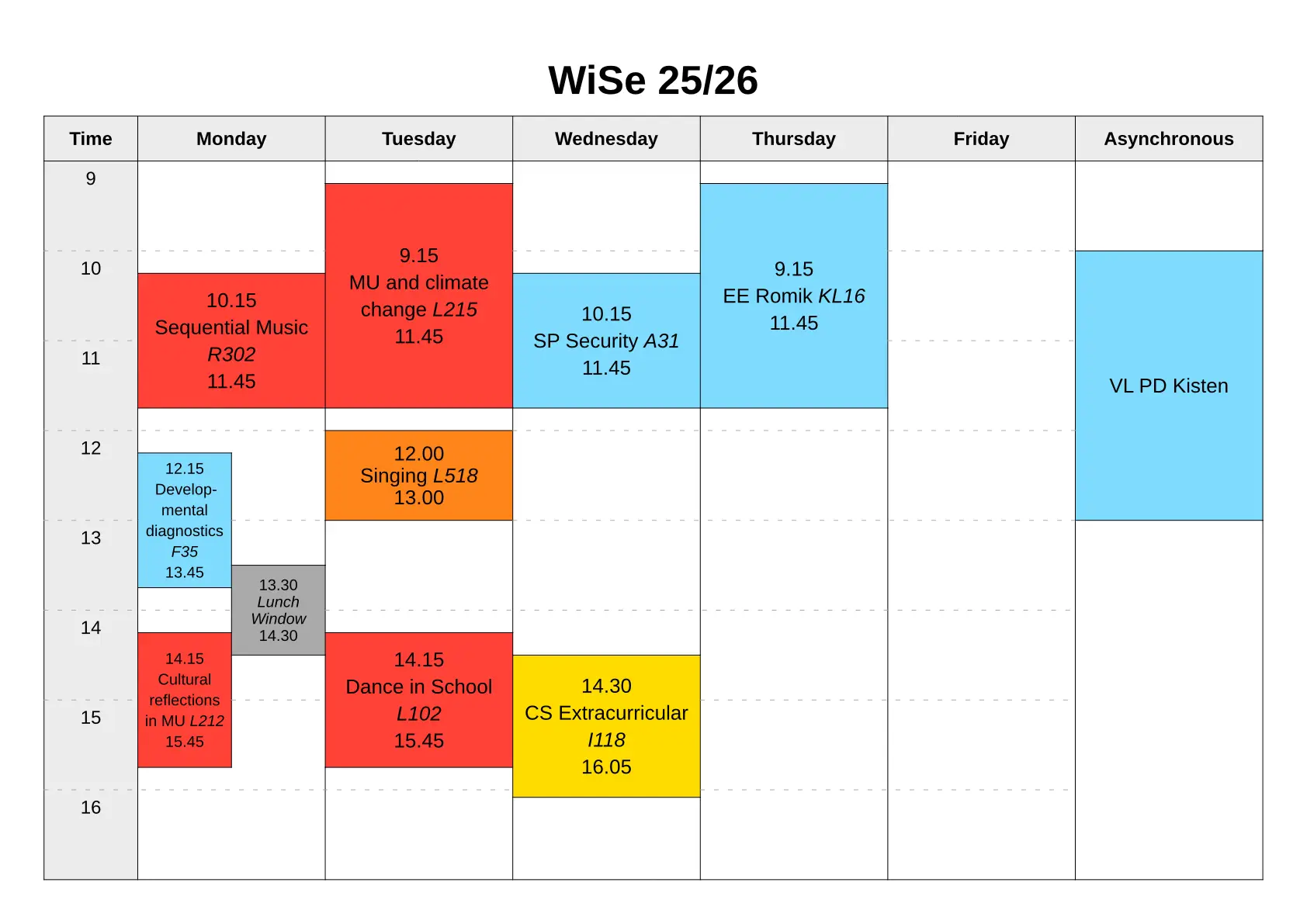
Draw and style precise time tables with ease.
Example
#import "@preview/timble:1.4.0": *
#set page(paper: "a4", margin: 1cm, flipped: true)

#timetable(title: "WiSe 25/26", font: "Liberation Sans", base-font-size: 13pt,
    start-hour: 9, end-hour: 16,
    monday: (
        (10.15, 11.45, red, [Sequential Music _R302_]),
        (12.15, 13.45, aqua, [Develop-\ mental diagnostics _F35_]),
        (13.30, 14.30, gray, [_Lunch Window_]),
        (14.15, 15.45, red, [Cultural reflections in MU _L212_]),
    ),
    tuesday: (
        (09.15, 11.45, red, [MU and climate change _L215_]),
        (12.00, 13.00, orange, [Singing _L518_],),
        (14.15, 15.45, red, [Dance in School _L102_]),
    ),
    wednesday: (
        (10.15, 11.45, aqua, [SP Security _A31_]),
        (14.30, 16.05, yellow, [CS Extracurricular _I118_]),
    ),
    thursday: (
        (09.15, 11.45, aqua, [EE Romik _KL16_]),
    ),
    asynchronous: (
        (10, 13, aqua, [VL PD Kisten]),
    ),
)

Quick overview
- Import via
#import "@preview/timble:1.4.0". - Draw precise timetables with
#timetable():- Define your schedule by setting the parameters
mondaythroughsunday(with an option forasynchronousas well). - Each day is an array with each item being an array that defines one entry
on your schedule. The items have four members: starting time, end time,
color and content to display in the resulting cell.
- Events overlapping in time are automatically staggered and placed side by side.
- Time indications are made in 24-hour format and are done as follows:
14(int) for full hours,13.42(float) /"13.42"(string) for hours and minutes.
- To make basic changes to the timetable, use the following parameters:
am-pm-format: trueto display 12-hour time format.start-hour: 10andend-hour: 18to change the extent of the displayed time.title: "String"to display a title.base-font-size: 12ptto change the starting point for font size adjustments.
- Define your schedule by setting the parameters
Usage
Import
#import "@preview/timble:1.4.0": *
Functionality
timetable()
Draws a timetable with variable days, colors and styling. Call timetable()
and set the parameters for weekdays like monday to fill the table with
entries.
Each day or the asynchronous column are assigned an array that is filled with
individual entries.Each entry is given as an array of
(starttime, endtime, color, content).
starttimeandendtimeare supplied in 24-hour time format and can be given as integers (11) for full hours or floats (11.30) / strings ("11.30") for hours and minutes.- Note: Entries should ideally be supplied in their time order (not an entry for the evening before one in the morning).
coloris the fill color to use for the timetable entry.contentis the text that will be put in the entry.- Note: The start and end times will be included with the label automatically.
The timetable automatically includes or excludes the weekend and the asynchronous column based on whether they contain any entries or not. Furthermore, text sizes are adjusted automatically to make labels fit within their entries’ bounds (within reason). This means that even very short entries do not clip their contents, but this can lead to small text.
Main function parameters:
mondaytosundayandasynchronous(default()): Parameters to fill the day columns in the timetable with. See above for how to create timeslots to be displayed.title(defaultnone): Title to optionally display above the timetable.start-hour(default8): First hour time to include in the timetable.end-hour(default18): Last hour time to include in the timetable.
Styling parameters:
info-names(default("Time", "Monday", "Tuesday", "Wednesday", "Thursday", "Friday", "Saturday", "Sunday", "Asynchronous")): How to label the different days in the timetable as well as the time indication column. Provide your own array with strings to adjust for your language.hide-empty-weekdays(defaultfalse): Call withtrueto exclude all empty weekdays from the timetable. Use this to have the timetable only show days that you defined events for.hide-event-hours(defaultfalse): Call withtrueto hide the start and end times inside event cells. Only the event content will be displayed.time-prefix(default""): Optionally set a prefix to print infront of the time indications.time-suffix(default""): A suffix option for time indications is also available.
am-pm-format(defaultfalse): Whether to print times in AM/PM format instead of 24-hour format.- Bug notice: Versions
1.1.0and1.2.0of the package wrongly ignore this parameter. Fixed in1.3.0.
- Bug notice: Versions
info-fill(defaultrgb("ececec")): What color to fill the timetables info fields with (day names and hour column).empty-fill(defaultnone): What color to fill empty time with.font(defaultauto): What font to use for the timetable.automeans any previously set font is used.base-font-size(default12pt): What starting size to use inside the timetable. Adjustments are still made automatically based on space constraints.title-font-size(default26pt): What font size to use for the title.stroke(default0.5pt): What stroke to use for most lines in the timetable.hour-stroke(default(paint: gray, thickness: 0.5pt, dash: "loosely-dashed")): What stroke to use for the hour indication lines inside the timetable proper.hour-stroke-in-time-cells(defaulttrue): Whether to use the hour stroke inside the hour column as well or not.
hour-num-spacing(default1mm): How much spacing to add below the hour mark lines in the hour column before the time indications.border(defaultnone): Stroke to draw around the whole timetable chart (both the timetable itself and the possible title).margin(default0pt): Inset to use between theborderand the whole chart.background(defaultnone): Color to underlay the whole chart with.width(default:auto): Used to set the exact width for the whole chart.automeans all available space will be filled.height(default:auto): Used to set the exact height for the whole chart.automeans all available space will be filled.
Local package
If you want to use the package locally, you have two options:
-
Download and extract the package folder to your chosen package namespace. Check the official documentation for where to find and create a namespace. Then simply import the package from that namespace. The following example assumes a namespace named
localto be used:#import "@local/timble:1.4.0": *This makes the package available anywhere on your system via the namespace import.
-
Download only the single file named
timble.typand place it next to the typst file you wish to use the package in. Then simply import the file as follows:#import "timble.typ": *This method will make the package available only to files that you directly copy the source file next to.
Known bugs in published package versions
Any bugs found in published package versions are recorded here. If you notice one of the following problems, you likely need to switch your used version:
- Bug:
am-pm-formatparameter being ignored by the package.- Affected versions:
1.1.0and1.2.0 - Fixed in version:
1.2.1
- Affected versions: