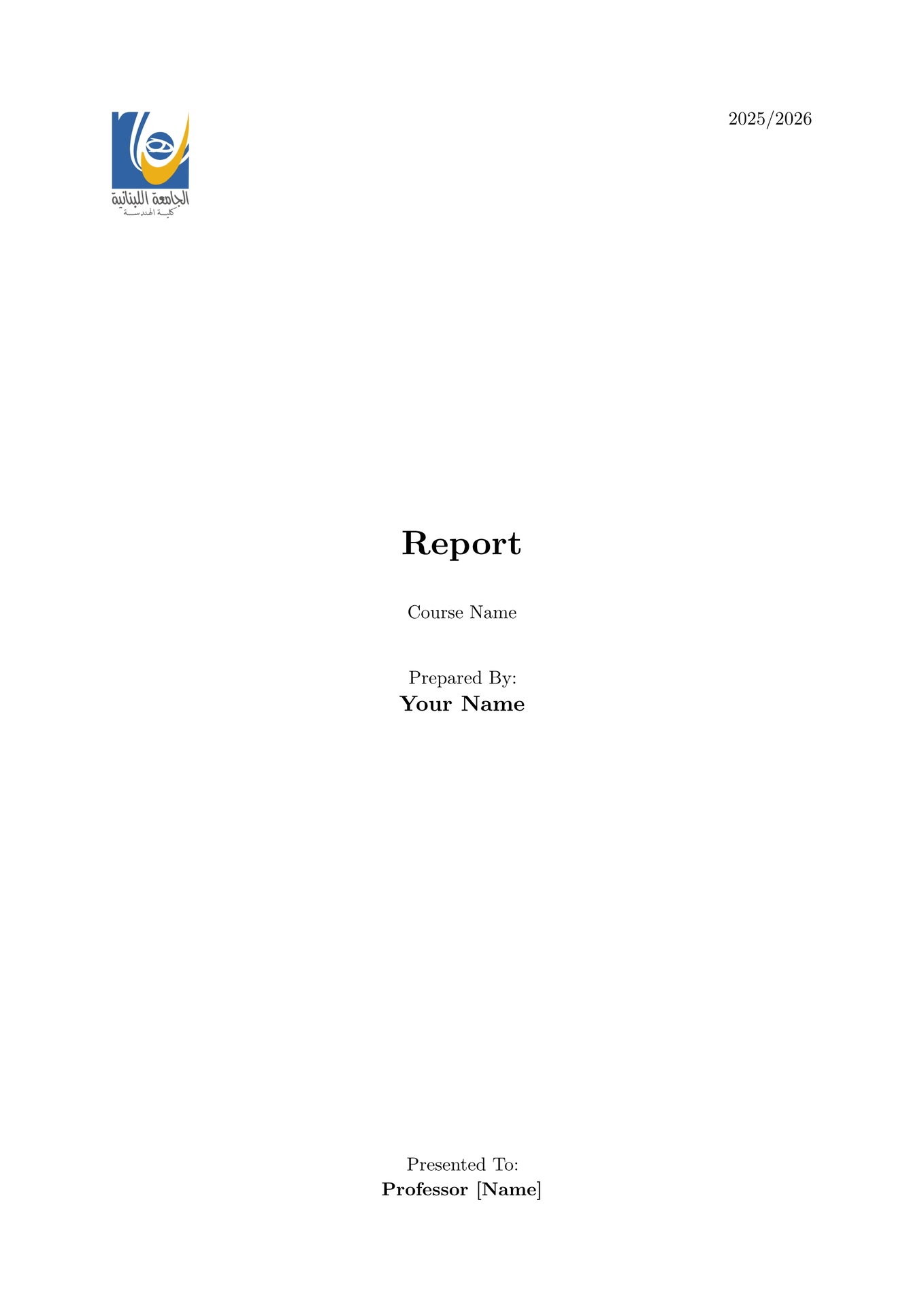
Unofficial template for writing reports and thesis for ULFG
Usage
You can use this template in the Typst web app by clicking “Start from template” on the dashboard and searching for starry-ulfg.
Alternatively, you can use the CLI to kick this project off using the command
typst init @preview/starry-ulfg
Typst will create a new directory with all the files needed to get you started.
Configuration
This template exports the starry-ulfg function with the following named arguments:
document-title: The document’s metadata title as string (used in PDF properties).title: The report’s title as content (displayed on cover page).course: The course name as string ornone. Optional.year: Current academic year as content. Defaults to[2025/2026].logos: Additional logos to add as array of image content. Defaults to().candidates: Candidate/student names as array of strings.professors: Professor/instructor names as array of strings. Defaults to().paper-size: Paper size as string (e.g.,"a4","us-letter"). Defaults to"a4".lang: Text language as string. Defaults to"en".preface: Preface content. Defaults to[].acknowledgment: Acknowledgment content. Defaults to[].show-list-of-figure: Show list of figures. Defaults totrue.show-list-of-tables: Show list of tables. Defaults totrue.show-appendix-table-contents: Show appendix in table of contents. Defaults totrue.
The function also accepts a single, positional argument for the body of the paper.
Appendix
To add appendix sections to your document, use the appendix function. This will change the heading numbering to letters (A, B, C…) and update the supplement to “Appendix”:
#show: appendix

= First Appendix Section
Content here.

= Second Appendix Section
More content.
All headings after #show: appendix will be numbered as appendices and automatically included in the appendix table of contents if show-appendix-table-contents is set to true.