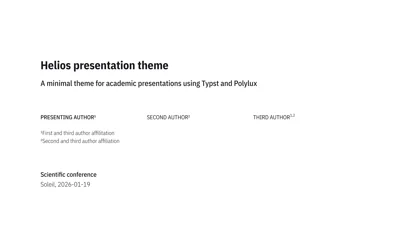
Helios is a minimal theme for creating academic presentations with Typst and Polylux.
The Helios theme is inspired by the metropolis-polylux
theme and the Metropolis
theme for Beamer. Code for the
outline and focus functions was taken from the metropolis-polylux
theme.
Create a new presentation
Use the typst init functionality to create a new presentation based on
the Helios template:
typst init @preview/helios-polylux new-presentation
This will create a folder called new-presentation containing a
presentation.typ file that can be used a starting point for your
presentation.
Fonts
By default, the package uses IBM Plex fonts (Sans, Sans Condensed, Mono and Math), which you can download here:
Feel free to use other typefaces as described in the Customization section. Just keep in mind that the spacing and whitespace have been determined based on the properties of the Plex fonts, which potentially leads to subpar results (or requiring additional adjustments) for alternative typefaces. For example, slides are by default set in a condensed font (if available).
Setup
To use the default settings (e.g. orange accent colour), simply call
#show: setup
before your presentation content.
Customization
The setup function accepts the following arguments for customization:
text-font,math-font,code-font: Specify the fonts to be used. Defaults are, respectively,"IBM Plex Sans","IBM Plex Math","IBM Plex Mono".colour-fg: The colour to be used in foreground elements (i.e. text). The default isrgb(21,20,26).colour-bg: The colour to be used in background elements (i.e. slide background). The default iswhite.- colour-accent: Accent colour to be used for emphasis (i.e. text inside
_ … _), by defaultrgb("#D45E00"). Also used byhypothesisblocks (see below). text-size: Sets the text size for slide content. Other elements are adjusted accordingly. The default is16pt. Any changes are likely to negatively affect spacing and whitespace without further adjustments.section(boolean or string): Set totrue(default) will include the current section title in the footer. Alternatively, provide a string to set the footer text directly.number: Whether to number standard slides (defaults totrue). Some slide types (i.e. focus slides, image slides, and section slides) are not numbered by default. Numbering can also be specified with theslidefunction for each slide individually.lang: Provide a string with the ISO language code (e.g."fr","es", etc.) to set the language of the presentation. Defaults to"en".
To set up a presentation in French with a different accent colour, for example, you can use following setup call:
#show: setup.with(colour-accent: rgb("#099D72"), lang: "fr")
Usage
As a Polylux template, you can take advantage of the functionality explained in the corresponding documentation. The following sections focus on utilities provided by the Helios template specifically.
Colour emphasis and italics
As italic text is typically less readable in a presentation setting,
emphasis (delimited by _ … _) is generally provided by coloured text
(according to the accent colour). To explicitly produce italics, you can
pass content to the it[] function instead.
This will produce _text highlighted in the accent colour_.

This will produce #it[italic text instead].
Hypothesis blocks
The hypothesis function provides a shaded block with a title and
further content, set apart with a coloured border on the left side.
The accent and background colours can be further customized:
accent: Sets the colour of the left border. Default to thecolour-accentargument provided in the setup function (and thusrgb("#D45E00")if not provided there).fill: Background fill of the content block. Defaults toluma(245).
A standard hypothesis block can produced like this:
#hypothesis[
  H#sub[1] -- An interesting hypothesis
][
  #lorem(25)
]
Or with different accent colour and white background:
#hypothesis(accent: rgb("#099D72"), fill: white)[
  H#sub[1] -- An interesting hypothesis
][
  #lorem(25)
]
Inverted slides
Foreground and background colour of slides can be inverted by placing #show: invert-slide at the beginning of the slide content:
#slide[
  #show: invert-slide

  = Inverted content slide

  The foreground and background colours can generally be inverted with
  `#show: invert-slide`.

]
Focus slides
Focus slides use a larger font and different spacing to communicate
short key messages. This is set by placing #show: focus before the
slide content:
#slide[
  #show: invert-slide
  #show: focus

  *A particularly important aspect*

  Focus slides can be used to _emphasize_ a short but important message.
]
This functionality also works for inverted slides:
#slide[
  #show: invert-slide
  #show: focus
  *A particularly important aspect*

  Focus slides can be used to _emphasize_ a short but important message.
]
Image slides
The img-slide function can be used to produce fullscreen image slides,
optionally with inverted background and foreground colours. By default,
image slides do not include a footer. Text and other elements can be
placed on the slide as needed. The img-slide function accepts the
following arguments:
img: The image to be shown on the slide, as passed with theimagefunction.invert: Whether to invert background and foreground colours (see above). Defaults tofalse.section: Whether to include the section in the footer (defaultfalse).number: Whether to include the slide number in the footer (defaultfalse).foreground: Any content to be placed in the foreground (i.e. “above” the image).slide-fill: Changes the background colour of the slide. Useful to match the colour of an image that is smaller than the slide. Defaults tonone(i.e. the background colour specified at setup).
A fullscreen image slide with a black background colour and with text set in a colour that corresponds the slide background of a standard slide can be produced like this:
#img-slide(
  image("img_helios_example.jpg"),
  invert: true,
  slide-fill: black
)[
  #place(bottom+right, text(size: 0.5em)[Image: NASA/Goddard/SDO])
]
Sections and outline
A section slide can be produced with the make-section function. By
default, the section title (or a short version) will appear in the footer
of the following slides, and in the presentation outline. make-section
accepts the following arguments:
name: The title of the sectionshortname: A short version of the section title to be used in footers and outlines.caps: Whether the section slide should be set in all capitals (defaulttrue). This does not affect footers and outlines.
A simple section slide can be produced with:
#make-section[Introduction]
Short names are helpful for longer section titles:
#make-section[
  Helios, a minimal theme for academic presentation using Typst and Polylux
][
  Helios theme
]
The outline function can be used to produce an overview of all
sections:
#slide[
  = Overview

  #set text(size: 1.25em)

  #outline
]
Footer (sections and slide numbers)
The make-footer function can be called directly to customize the slide footer. By default it will contain the (short version) of the section and the slide number. The function accepts the following arguments:
section(boolean or string): Set totrue(default) will include the (short) title of the current section title in the footer. Alternatively, you can set the footer text explicitly by providing a string.number: Whether the slide number should be included in the footer (defaulttrue).
For example, to remove section title and page numbers you can use a show rule:
#slide[
  #show: page.with(footer: make-footer(section: false, number: false))

  = Content slide

  #lorem(50)
]
Or you can provide alternative text in the footer:
#slide[
  #show: page.with(footer: make-footer(section: [Alternative footer text]))

  = Content slide

  #lorem(50)
]
