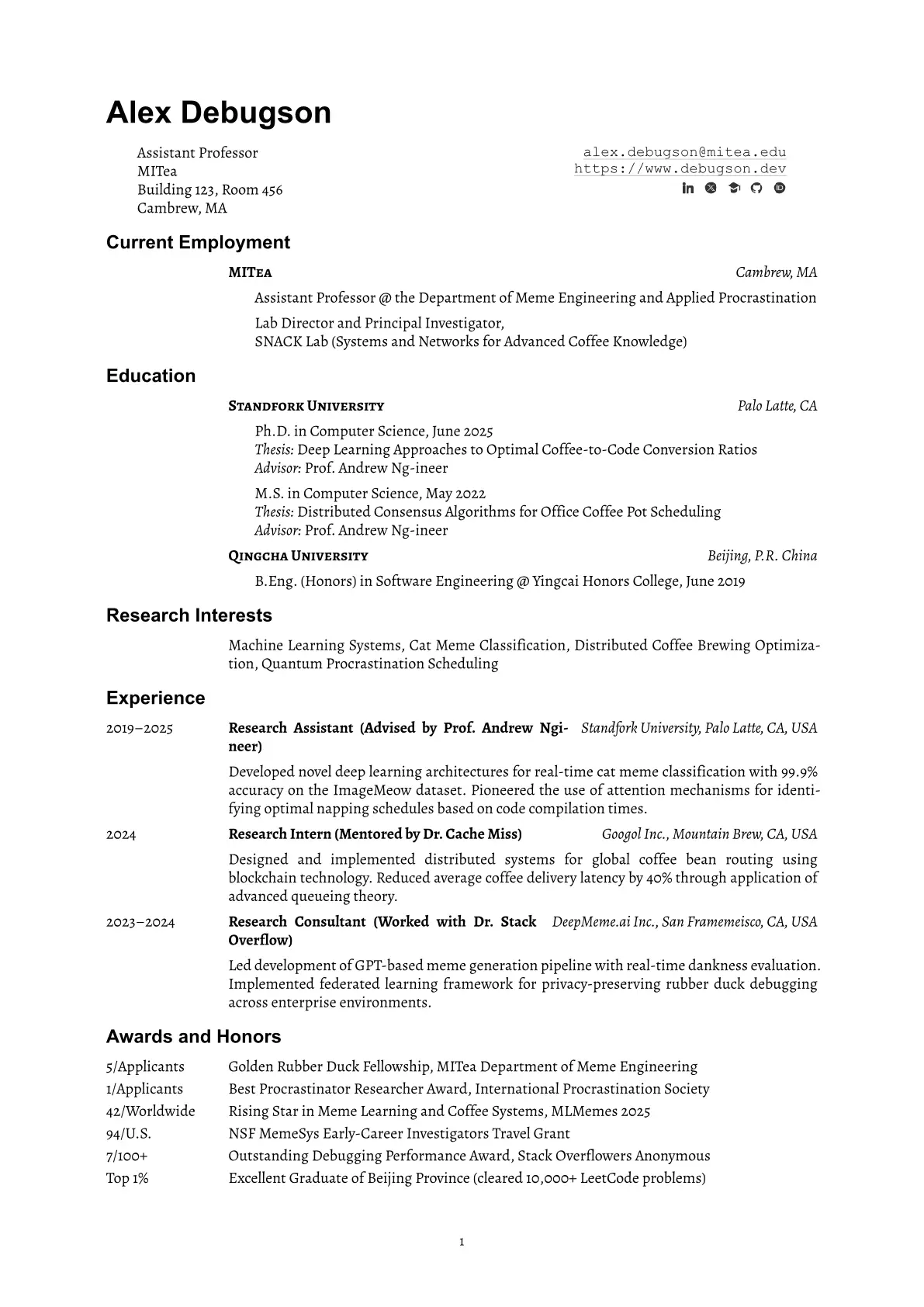
A professional, elegant academic CV template built with Typst. Designed for researchers and academics who value clean typography, structured content, and maintainable source code. The name “Acadennial” reflects a perennial academic CV: a single, polished record that grows with your career.

|

|

|
View the full example: examples/cv.pdf
Features
- Powered by Typst — Faster compilation, simpler syntax, and easier setup than LaTeX; works locally or in the Typst web app
- Highly customizable — Configure fonts, margins, column ratios, text weights, and spacing through simple parameters
- Three-column layout system — Flexible grid-based layout with configurable column widths and gutters for precise alignment
- Modern typography — Uses Alegreya for body text and Helvetica for headings, with careful spacing and alignment
- Structured content helpers — Dedicated functions for employment history, research entries, and publications with consistent formatting
- Automatic publication numbering — Continuous numbering across preprints, journals, conferences, workshops, and posters
- Academic social icons — Built-in icons for Google Scholar, LinkedIn, GitHub, ORCID, X/Twitter, and custom links with customizable styling
Quick Start
1. Install Required Fonts
This template uses the Alegreya font family. Download and install the fonts before compiling:
- Visit Google Fonts - Alegreya
- Click “Download family” to get the font files
- Important: Typst currently does not support variable fonts. Install the static font files from the
static/folder in the downloaded package - Install the fonts on your system:
- macOS: Double-click each
.ttffile and click “Install Font” - Windows: Right-click each
.ttffile and select “Install” - Linux: Copy
.ttffiles to~/.local/share/fonts/and runfc-cache -f -v
- macOS: Double-click each
2. Initialize the Template
Use the following CLI command to initialize a new project from this template:
typst init @preview/acadennial-cv
Or search for acadennial-cv on Typst Universe to use it directly in the web app.
Usage Guide
The typical workflow for creating your CV:
- Configure default column layout — Set up
col-cfgwith your preferred column widths and gutter spacing - Bind configuration to functions — Use
.with()to apply the configuration to all helper functions - Initialize the resume — Set up document metadata and author information
- Add content sections — Use Typst headings (
==) and helper functions to add education, experience, publications, etc.
Best practice: Refer to template/cv.typ for a complete working example with all sections and helper functions.
Basic Structure
#import "@preview/acadennial-cv:0.1.0": *

// 1. Default function configurations
#let col-cfg = (
  c1-len: 15%, c2-len: 1fr, c3-len: auto, col-gutter: 1em,
)
#let employment-head = employment-head.with(..col-cfg)
#let meta-entry-item-list = meta-entry-item-list.with(..col-cfg)
// ... bind other functions

// 2. Initialize resume
#show: resume.with(
  col-args: (c1-len: col-cfg.c1-len, c2-len: col-cfg.c2-len, col-gutter: col-cfg.col-gutter),
  author-info: (name: "Your Name", primary-info: [...], secondary-info: [...]),
)

// 3. Add content sections
== Education
#employment-head-item-list(
  (c2: "University Name", c3: "City, State", body: [Ph.D. in Computer Science, 2025]),
)

== Publications
#pubs-reset()
#pub-item-list([*Your Name*, Co-authors. Paper Title. _Conference_, 2024.])
Section-Specific Customization
You can override default configurations for individual sections:
// Override text weight for a specific section
== Academic Service
#meta-entry-item-list(
  c2-text-args: (weight: "regular"),  // Non-bold titles for this section only
  (c1: "2024", c2: "Program Committee Member, Conference Name"),
)
For detailed function parameters and advanced customization, see the API Reference below.
API Reference
resume() — Document Setup
Initialize the CV document with global settings and author information.
#show: resume.with(
  // Paper and layout
  paper: "a4", // or "us-letter"
  margin: (left: 0.95in, right: 0.95in, top: 0.9in, bottom: 0.9in),

  // Typography
  text-args: (
    font-family: "Alegreya",
    font-size: 10pt,
  ),
  heading-args: (
    font-family: "Arial",
    level1-font-size: 20pt,
    level3-align: right,
  ),

  // Paragraph spacing
  par-args: (
    leading: 0.55em,
    spacing: 1em,
  ),

  // Link styling
  link-line-args: (
    stroke: 0.5pt + luma(200),
    offset: 2pt,
  ),

  // Column configuration
  col-args: (
    c1-len: 15%,
    c2-len: 1fr,
    col-gutter: 1em,
  ),

  // Author configuration
  author-args: (
    web-font-family: "Courier New",
    web-font-size: 0.95em,
  ),

  // Author information
  author-info: (
    name: "Your Name",
    primary-info: [
      Position Title \
      Department Name \
      Institution \
      City, State
    ],
    secondary-info: [
      #link("mailto:email@university.edu")[email\@university.edu] \
      #link("https://website.com")[https://website.com]
    ],
  ),
)
Parameters:
paper: Page size ("a4"or"us-letter")margin: Page margins (dictionary withleft,right,top,bottom)text-args: Body text settings (font-family,font-size)heading-args: Heading styles (font-family,level1-font-size,level3-align)par-args: Paragraph spacing (leading,spacing)link-line-args: Link underline styling (stroke,offset)col-args: Default column configuration for all functionsauthor-info: Author name and contact information
Employment Functions
employment-head(c2, c3, ...)
Institution header without body content.
#employment-head("Stanford University", "Stanford, CA")
Parameters:
c2: Institution name (displayed in small caps, bold)c3: Location (displayed in italics)c1-len,c2-len,c3-len: Column widthscol-gutter: Space between columnsc2-text-args: Text styling for institution name (default:(weight: "bold"))c3-text-args: Text styling for location (default:(style: "italic"))
employment-head-item(c2, c3, body, ...)
Institution header with indented body content.
#employment-head-item(
  "Stanford University",
  "Stanford, CA",
)[
  Ph.D. in Computer Science, June 2025 \
  _Thesis:_ Deep Learning for Systems \
  _Advisor:_ Prof. Name
]
Additional Parameters:
body: Content to display below the header (with left padding)body-pad-left: Left padding for body content (default:2em)
employment-head-item-list(...items)
Batch render multiple institution items.
#employment-head-item-list(
  (c2: "Stanford", c3: "CA", body: [Ph.D. in CS, 2025]),
  (c2: "MIT", c3: "MA", body: [B.S. in CS, 2020]),
)
Additional Parameters:
item-spacing: Vertical space between items (default:1em)
Meta Entry Functions
meta-entry(c1, c2, c3, ...)
Three-column entry without body content.
#meta-entry("2024", "Best Paper Award", "Conference Name")
Parameters:
c1: Left column (typically dates or labels)c2: Middle column (title or description, bold by default)c3: Right column (location or affiliation, italic by default)c1-text-args: Text styling for left column (default:(:)— no special styling)c2-text-args: Text styling for middle column (default:(weight: "bold"))c3-text-args: Text styling for right column (default:(style: "italic"))c1-len,c2-len,c3-len,col-gutter: Column configurationalign: Column alignment (default:(left, left, right))
meta-entry-item(c1, c2, c3, body, ...)
Three-column entry with body content.
#meta-entry-item(
  "2023–2024",
  "Research Scientist",
  "Company Inc., City, State",
)[
  Developed machine learning systems for production deployment.
  Achieved 40% latency reduction through model optimization.
]
meta-entry-item-list(...items)
Batch render multiple entries.
#meta-entry-item-list(
  (
    c1: "2024",
    c2: "Research Intern",
    c3: "Google, CA",
    body: [Worked on distributed systems.],
  ),
  (
    c1: "2023",
    c2: "Teaching Assistant",
    c3: "Stanford, CA",
    body: [Taught CS101 to 200+ students.],
  ),
)
Configuration Override Example:
// Override default bold text for a specific section
#meta-entry-item-list(
  c2-text-args: (weight: "regular"),  // Non-bold titles
  item-spacing: 0.8em,                // Tighter spacing
  (c1: "2024", c2: "Program Committee Member, ICML"),
  (c1: "2023", c2: "Reviewer, NeurIPS"),
)
Publication Functions
pubs-reset()
Reset the publication counter to 1. Call this once before your first publication section.
== Publications
#pubs-reset()
pub-item(body, ...)
Single numbered publication item.
#pub-item[
  *Your Name*, Co-author 1, Co-author 2. Paper Title.
  In _Proceedings of ICML_, pages 1–14, 2024.
]
Publications are automatically numbered [1], [2], etc., in order of appearance.
pub-item-list(...items)
Batch render multiple publications.
=== Conference
#pub-item-list(
  [*Your Name*, Authors. Paper 1. _ICML_, 2024.],
  [*Your Name*, Authors. Paper 2. _NeurIPS_, 2023.],
)

=== Journal
#pub-item-list(
  [*Your Name*, Authors. Article Title. _Nature_, 2024.],
)
Parameters:
c1-len,c2-len,c3-len: Column widths (default: publication number uses right alignment)col-gutter: Space between columns (default:1em)item-spacing: Vertical space between items (default:1em)
Academic Social Icons
The template provides six pre-configured icons for academic and professional links, commonly used in the secondary-info section of your CV header.
Available Icons
#google-scholar-icon()  // Google Scholar
#linkedin-icon()        // LinkedIn
#github-icon()          // GitHub
#orcid-icon()           // ORCID
#x-icon()               // X (formerly Twitter)
#link-icon()            // Generic link/website
Usage Example
#show: resume.with(
  author-info: (
    name: "Your Name",
    secondary-info: [
      #link("mailto:email@university.edu")[email\@university.edu] \
      #link("https://yourwebsite.com")[https://yourwebsite.com] \
      #link("https://scholar.google.com/citations?user=ID")[#google-scholar-icon()]
      #link("https://linkedin.com/in/username")[#linkedin-icon()]
      #link("https://github.com/username")[#github-icon()]
      #link("https://orcid.org/0000-0000-0000-0000")[#orcid-icon()]
    ],
  ),
)
Default Configuration
Icons are pre-configured in lib.typ with these default settings:
#let configured-icons = configure-icon-registry(
  color: luma(20%),   // Dark gray color
  height: 0.95em,     // Icon height relative to text
  baseline: 20%,      // Vertical alignment
)
Custom Icon Styling
To customize icon appearance globally, reconfigure the icon registry at the top of your CV:
#import "@preview/acadennial-cv:0.1.0": *

// Custom icon configuration
#let custom-icons = configure-icon-registry(
  color: rgb("#2563eb"),  // Blue color
  height: 1em,            // Slightly larger
  baseline: 15%,          // Different alignment
)

// Override default icons
#let google-scholar-icon = custom-icons.at("google-scholar-icon")
#let linkedin-icon = custom-icons.at("linkedin-icon")
#let github-icon = custom-icons.at("github-icon")
#let orcid-icon = custom-icons.at("orcid-icon")
#let x-icon = custom-icons.at("x-icon")
#let link-icon = custom-icons.at("link-icon")

// Continue with resume setup...
Per-Icon Customization
You can also customize individual icons inline:
#link("https://scholar.google.com")[
  #google-scholar-icon(color: rgb("#4285f4"), height: 1.1em)
]
Icon Parameters:
color: Icon color (accepts Typst color values:luma(),rgb(), etc.)height: Icon height (e.g.,0.95em,1em,12pt)baseline: Vertical alignment offset as percentage
Configuration Hierarchy
The template uses a hierarchical configuration system with three levels:
-
Global defaults (in
lib.typ)#let default-c1-len = 15% #let default-c2-len = 1fr #let default-col-gutter = 1em -
Document-level defaults (top of your CV)
#let col-cfg = (c1-len: 15%, c2-len: 1fr, col-gutter: 1em) #let meta-entry-item-list = meta-entry-item-list.with(..col-cfg) -
Section-level overrides (per function call)
#meta-entry-item-list(
  c2-text-args: (weight: "regular"),  // Override for this section only
  (c1: "2024", c2: "Content"),
)
Priority: Section-level > Document-level > Global defaults
Common customizations:
- Column widths: Adjust
c1-lenfor wider date columns,col-gutterfor spacing - Text styling: Override
c1-text-args,c2-text-args,c3-text-argsto change weight, style, size, color - Spacing: Modify
item-spacingto control vertical spacing between entries - Alignment: Change
alignparameter for different column alignments
Contributing
Contributions are welcome! Please feel free to submit issues and pull requests.
License
This project is licensed under the MIT License.
Acknowledgments
-
The layout and tone are inspired by Shinan Liu – A Researcher in Networking, Security, and ML Systems
-
This template depends on the following Typst packages:
- scienceicons (MIT License)